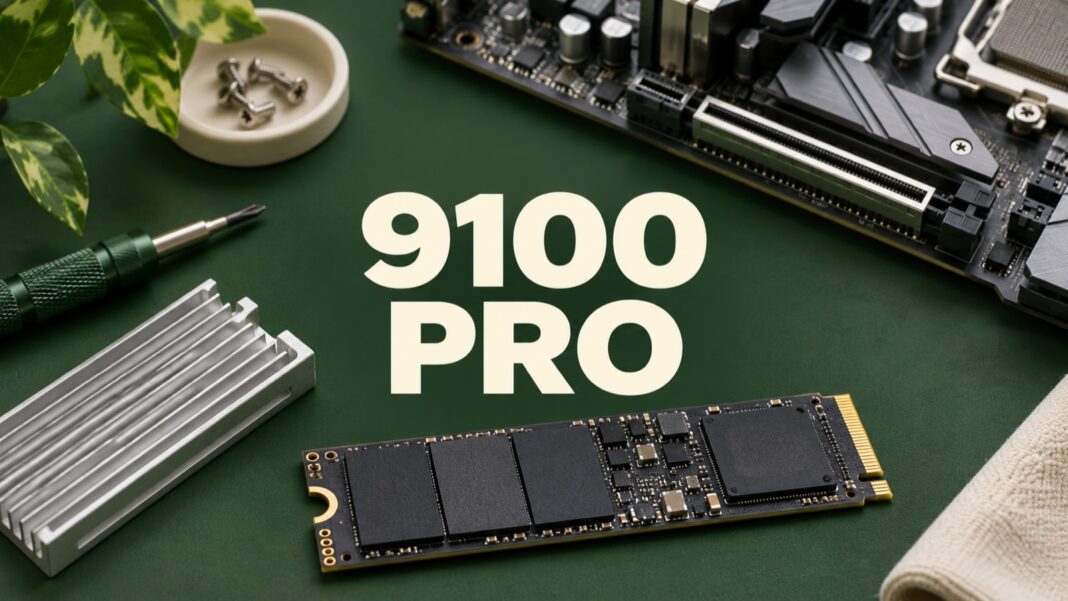

The Samsung 9100 PRO 2TB is a PCIe 5.0 SSD, but deciding whether to buy it requires more than comparing the biggest speed figures. A creative workstation needs the right host connection, cooling and capacity before a premium storage drive can deliver a useful improvement. The first question is what your current machine actually makes you wait for.
This guide explains how to evaluate the 2TB version for large creative projects and everyday PC use. It is based on manufacturer documentation and workload planning, not an original laboratory review. Use it to decide whether a Gen 5 upgrade belongs in your machine and what to verify before ordering.
Samsung 9100 PRO 2TB specifications that matter
Samsung’s 9100 PRO data sheet identifies the interface as PCIe 5.0 x4, NVMe 2.0, and the form factor as M.2 2280. For the 2TB version, it lists sequential performance up to 14,700MB/s read and 13,400MB/s write. The stated results depend on the test configuration; they are not guaranteed transfer speeds for every computer or file.
Keep the exact capacity and model code beside those figures. The 1TB and larger-capacity variants do not share every specification. A retailer may place a family-level maximum in a headline while selling a different capacity below it. Match the selected item, the basket and the manufacturer’s capacity-specific table before comparing offers.
There are also versions with and without a heatsink. Samsung’s official series announcement describes both options. The appropriate choice depends on the host’s available space and existing thermal arrangement. A heatsink is a physical part of the compatibility decision, not just a cosmetic variation.
Check whether the intended slot can use PCIe 5.0 x4
Read the storage section of the motherboard or computer manual for your exact model. Identify the particular M.2 socket you plan to use, its supported drive lengths and its connection. A motherboard advertising PCIe 5.0 somewhere on its specification sheet does not establish that every storage socket provides that interface.
Samsung states that the 9100 PRO is backward compatible with PCIe 4.0 x4 and 3.0 x4. That can make an installation possible on an older host, but it does not give that host Gen 5 bandwidth. Separate “the drive can work here” from “this connection can support the advertised maximum.”
Write down the slot identifier, supported interface, available mounting hardware and any restrictions in the host manual. Some motherboard configurations share resources between connectors. Use the manufacturer’s explanation of your actual configuration rather than assuming that a free socket has no effect on anything else.
If you are weighing a less demanding upgrade, our Samsung 990 EVO Plus guide explains another storage option. The useful comparison is the total upgrade that suits your host and files. A higher interface generation alone does not make a drive the best purchase for every machine.
Find the workload that would benefit
Choose three jobs you perform regularly: perhaps importing a media folder, opening a large project and exporting a finished video. Record the source location, destination, approximate file size and time taken. Include enough detail to repeat each job later. This gives you a baseline grounded in work you actually need to finish.
Then ask what limits each task. A copy from a slower external drive cannot outrun its source indefinitely. An export dominated by encoding or rendering may depend more on CPU or GPU performance. A network download also depends on the connection. Treat the storage path as a system rather than assigning the entire delay to the destination SSD.
A simple hypothetical example makes the distinction clear. If a designer spends two minutes choosing images and only a few seconds opening them, a faster drive cannot recover those two minutes. If a video workflow repeatedly copies large local datasets between appropriately fast devices, storage bandwidth deserves closer examination. Measure before assigning a budget.
Check cooling and physical fit together
Inspect the clearance around the intended slot and follow the computer manufacturer’s thermal instructions. A desktop motherboard may provide its own M.2 cover and thermal pads. A compact computer or laptop can have a different arrangement. Do not stack parts or substitute a large heatsink without confirming the resulting assembly is supported.
Plan for the installed environment rather than a drive photographed on an open bench. Nearby components, airflow and service access can affect the practical choice. Keep screws and small mounting parts organised. If you are unsure how the host’s thermal pad or retention mechanism works, consult the service documentation before removing anything.
For a complete workstation decision, read our laptop guide for graphic design. Storage, memory, software support and portability interact. A drive upgrade should support a machine you intend to keep, rather than becoming an isolated purchase that leaves the central limitation unresolved.
Decide whether 2TB is the right amount of space
List active project files, original media, application caches, installed software and final exports separately. Then estimate how much you need to keep locally at the same time. The total archive you own and the active working set on your computer are different numbers.
For example, you might keep completed projects on a separate backed-up archive while retaining only current jobs on the workstation. That can reduce local capacity pressure, but only if the archive remains accessible and recoverable. Moving a file to another single drive does not automatically create a backup.
Include temporary space for a second export or a copied project when you estimate capacity. This is more informative than filling the drive to a theoretical maximum on day one. Allow for the way your files grow, and compare 2TB with alternatives using the same workflow assumptions.
Read endurance and warranty without predicting a failure date
The data sheet gives the 2TB model a 1,200TB written endurance rating and a five-year limited warranty, with coverage governed by the time or TBW limit reached first. Read the applicable local warranty terms. A published endurance threshold is not a countdown showing when a particular drive will stop working.
Our SSD TBW endurance explanation separates the rating from an individual reliability forecast. For buying purposes, consider the amount of writing your work produces and how you will protect valuable files. Capacity planning, backup and monitoring remain useful even when a drive has a generous published rating.
Compare the complete upgrade cost
Add the drive, any required compatible cooling and any installation or migration costs. Compare the final delivered price in your own currency, including taxes, seller support and return terms. A temporary offer in the US may not describe the price or warranty available to a Canadian, Spanish or Australian buyer.
Before installation, make an independent backup and verify a few important files from it. Decide whether you will clone the old setup or install the operating system cleanly, then follow the supported procedure for the host and migration software. Keep the old drive unchanged until the new setup passes normal work checks.
The 9100 PRO 2TB makes the strongest case when a compatible computer and a demonstrated storage-heavy workload can use its capabilities. If your main need is additional space, compare suitable capacity options first. Buy the improvement you can explain in your workflow, then verify it with the same tasks you recorded before the upgrade.