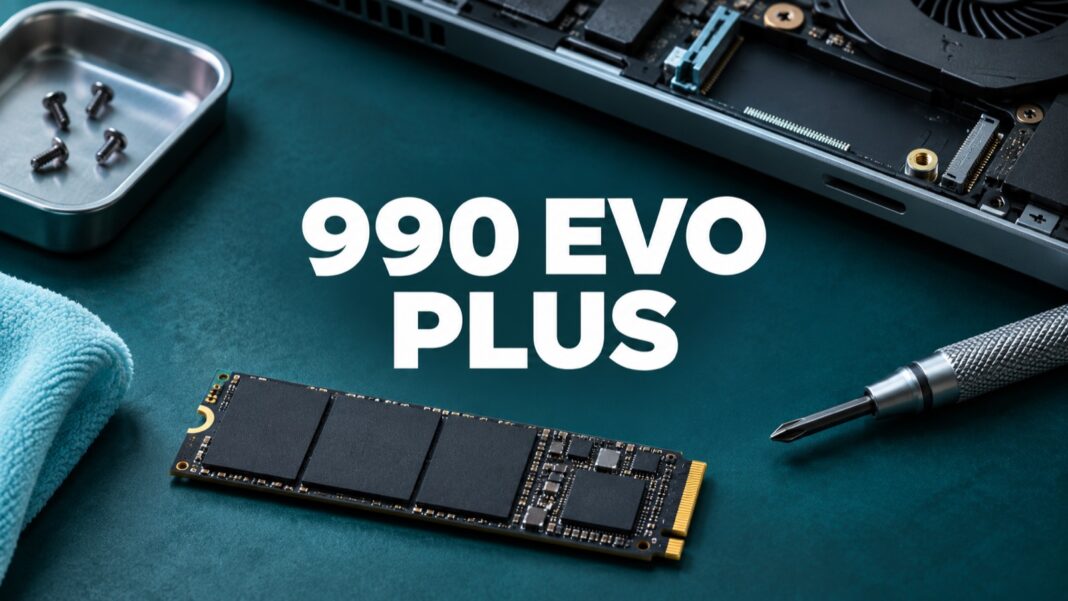

A Samsung 990 EVO Plus upgrade can look straightforward until a store listing mixes model names, capacities and speed figures. Before buying, match the exact drive to your computer, then decide whether the upgrade solves a capacity problem, a transfer bottleneck or both. A fast specification cannot compensate for an incompatible slot or a workflow limited by something else.
This guide focuses on the 1TB model and the checks that matter before installation. It is a specification-based buying and migration guide, rather than a hands-on benchmark. The aim is to help you read the product correctly, preserve your files and make a useful comparison with the drive already in your machine.
Samsung 990 EVO Plus: identify the exact model first
Samsung’s 1TB product page identifies the 990 EVO Plus and lists sequential speeds of up to 7,150MB/s read and 6,300MB/s write. Those are advertised ceilings for that capacity, not a promise that every copy operation reaches them. Check the model code, capacity and official specification together.
A listing that says only “Samsung 990 1TB” leaves too much unresolved. Ask whether it means 990 EVO, 990 EVO Plus or 990 PRO. Keep the full model name in your comparison notes and shopping basket. If a retailer’s title and specification table disagree, resolve the discrepancy before paying rather than guessing from a photograph.
Capacity variants also deserve separate rows in your comparison. Samsung’s official specification table gives the 1TB version a different maximum read speed from the 2TB and 4TB versions. It identifies the family as M.2 2280, using PCIe 4.0 x4 or PCIe 5.0 x2. These details are more useful than a broad “Gen 5” badge.
Check the slot, protocol and physical space
Open your computer or motherboard manufacturer’s service documentation before opening the case. Find the storage section for your exact model and revision. Confirm that the intended slot supports a PCIe NVMe drive and the 2280 length. A slot that looks similar is insufficient evidence: connector shape, supported protocol and mounting positions all matter.
On a laptop, also check whether storage is replaceable at all, how many slots exist and whether the service instructions require a particular thickness or thermal arrangement. Some machines have soldered storage or limited service access. A desktop motherboard may offer several M.2 sockets with different connections. Read the description of the specific socket you plan to use.
Keep a simple compatibility note: computer model, slot identifier, supported protocol, supported length, available screw or latch, and manufacturer instructions. If any field is unknown, postpone the purchase until you can verify it. That small pause is cheaper than discovering that your only available slot cannot accept the drive you ordered.
Understand the interface without expecting impossible speeds
The x4 and x2 labels describe lane configurations. They do not mean a PCIe 5.0 connection automatically doubles this drive’s advertised speed. The host connection and the SSD’s own limits both constrain the result. Read the drive specification alongside the motherboard manual, rather than comparing interface generations in isolation.
Real work introduces other limits. Copying from a slower external disk, downloading over a modest connection or opening a CPU-heavy project can leave a fast SSD waiting. Consider the entire path: source device, connection, destination drive and application. A single headline number describes only one part of that path.
For example, imagine an illustrator whose current SSD is nearly full but whose normal files are small. Extra usable space may be the main benefit. A video editor transferring large media folders has a different problem and should examine sustained workload behaviour. Neither person can predict the improvement solely from the maximum sequential read figure.
Choose capacity around active projects and recovery space
List the operating system, installed applications, current projects, source media, exports and temporary files you expect to keep locally. Separate active work from archives. Then estimate how that workload changes over the next year. This produces a more useful capacity decision than buying the smallest drive because its speed specification looks impressive.
A useful planning exercise is to add a second copy of your largest active project to the calculation. Can the machine still accommodate an export, an application update and normal temporary files? This is a workload estimate, not a universal free-space percentage. Your own files provide a better starting point than an arbitrary rule.
If you are evaluating the whole computer, also read our graphic-design laptop guide. Storage belongs in the same decision as memory, display quality and software requirements. Replacing a serviceable computer’s drive may be sensible; buying a new SSD will not fix a machine whose main limitation is elsewhere.
Make a migration plan before removing the old drive
First create a separate backup of irreplaceable files and confirm you can open representative files from it. A migration copy and a backup serve different purposes. If the source drive has unreadable files or the migration process fails, having a second accessible copy gives you a recovery route.
Decide between a clean operating-system installation and cloning the existing setup. A clean installation requires application installers, licences, account access and time to restore preferences. Cloning aims to preserve the current environment, but it still requires compatible software and a way to connect both drives. Check the supported workflow for your computer before choosing.
Record any disk-encryption recovery information through the operating system’s recommended process and store it securely. Do not put it in a public troubleshooting post. Keep the old drive unchanged until the replacement boots correctly and your important applications and files have passed a deliberate check.
Install and verify methodically
Follow the computer manufacturer’s shutdown, power-disconnection, battery and anti-static instructions. Use the specified mounting hardware and thermal components. Avoid improvising with an oversized heatsink in a laptop. If the service procedure is outside your experience, a qualified technician can complete the physical installation while you retain control of the backup and recovery plan.
After installation, confirm the expected capacity is detected and the operating system uses the intended drive. Open several project files, save a duplicate and run a normal export. Compare these tasks with notes from the previous setup. A successful synthetic test alone does not prove that a design workflow migrated correctly.
Keep an eye on available firmware and supported management tools through Samsung’s official support channels. Read update instructions and back up first. For the distinction between a drive’s endurance rating and an actual failure prediction, see our SSD TBW endurance explanation.
When this upgrade is worth considering
The 990 EVO Plus belongs on a shortlist when its exact model fits the computer and its capacity addresses a real need. Compare the delivered price, seller, warranty terms and return policy in your own market. A Canadian offer and an Australian offer are not directly comparable until currency, taxes and local support are considered.
Also read our OLED versus IPS guide for designers if you are distributing a limited workstation budget. Improving storage, memory or the display can solve very different problems. Spend against the bottleneck you can describe, and keep the specification sheet as a compatibility check rather than a substitute for that decision.