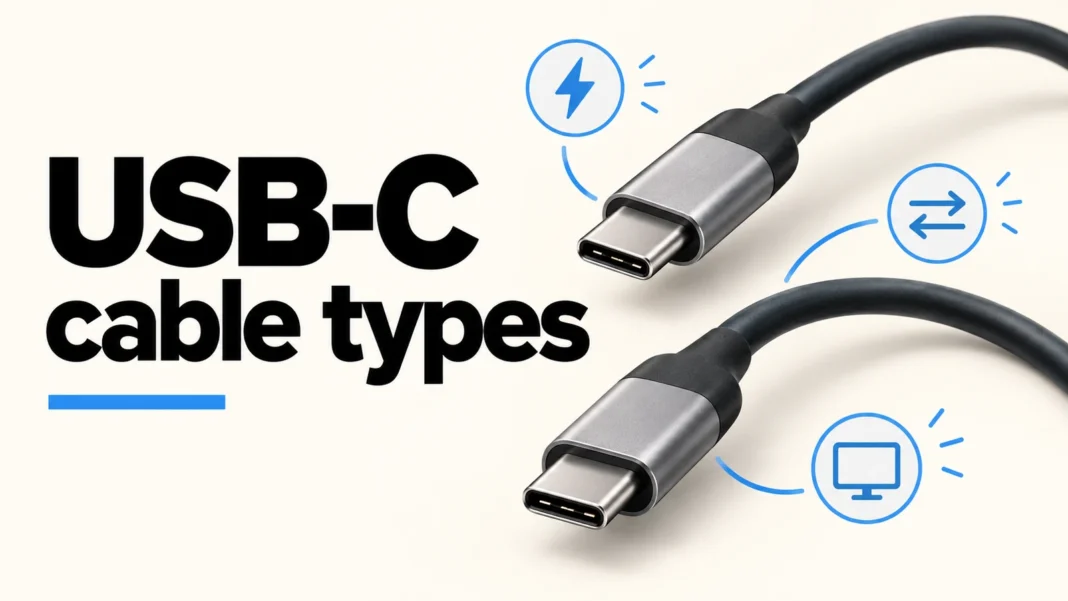

USB-C cable types differ in power capacity, data performance, and support for uses such as connecting a display. The connector tells you what fits; it does not tell you everything the cable can carry. Check those capabilities separately, then match the cable to the ports and devices at both ends.
A cable can charge a laptop yet transfer files slowly. Another can handle fast data but still be the wrong choice for a particular dock or monitor. Before buying a replacement, write down the job it needs to do rather than looking for the highest wattage or a familiar-looking plug.
USB-C is the connector, not the complete specification
USB Type-C describes a connector system with a reversible plug. USB data protocols and USB Power Delivery describe other parts of a connection. USB-IF’s Type-C guidance explicitly separates these terms and explains that manufacturers choose which supported capabilities to implement.
A USB-C to USB-C cable has the same connector shape at each end. A USB-A to USB-C cable has different ends. That physical distinction helps you identify what will connect, but you still need the cable’s performance specification and the device documentation. An adapter that changes the shape does not establish that the desired function exists.
Read a listing as several separate statements: connector ends, power rating, data rate, video or protocol compatibility, and length. If a needed statement is missing, ask the manufacturer rather than treating a photograph as a specification.
Read watts as a power capability
Watts describe power, not data speed. USB-IF’s Power Delivery overview explains how USB PD supports flexible power delivery and, in supported implementations, power levels up to 240W. That capability requires a compatible connection; a cable label alone does not make a charger or device deliver or accept that amount.
For charging, check the device’s requirements, the charger’s supported outputs, and the cable’s rating. On a charger with several ports, consult its documentation for how the available power changes when you use multiple outputs. Do not assume the headline total applies independently to every port.
For example, if a laptop’s charging arrangement needs more than 60W, a cable rated only for 60W cannot satisfy that higher requirement. Choosing a cable rated for more power addresses that cable limit, but it does not upgrade an inadequate charger. The device and charging protocol still determine the usable arrangement.
Read Mbps and Gbps as data performance
For file transfer, look for an explicit data rate. USB-IF’s consumer naming guidance uses performance names such as USB 5Gbps, USB 10Gbps, USB 20Gbps, USB 40Gbps, and USB 80Gbps. These are signaling capabilities, not guaranteed file-copy speeds.
USB 2.0 Type-C implementations can support data operation up to 480Mbps. That may suit a simple peripheral, but it is a different class of connection from a fast external storage setup. Real transfer performance also depends on the host, storage device, hub or dock, software, and workload.
Keep the units straight: Gbps means gigabits per second, while GB/s means gigabytes per second. Eight bits make one byte, but dividing a signaling rate by eight still does not predict a real file transfer once overhead and device limits enter the picture.
High charging power does not prove high data speed
A manufacturer example makes this distinction concrete. Apple describes its 240W USB-C Charge Cable as supporting charging up to 240 watts while transferring data at USB 2 rates. This illustrates separate capabilities; it is not a product test or a buying recommendation.
If your aim is copying large files to an external SSD, a charging-focused label is insufficient. Check the data capability supported by the computer port and drive, then select a cable whose documented performance suits that connection. Paying for a higher rating does not force either endpoint to operate beyond its own support.
For a charging-only job, prioritize the required power capability, suitable connectors, and appropriate length. For charging plus storage, record both the power and data requirements. Keep those two decisions visible instead of letting one impressive number stand in for the whole specification.
Video needs a supported path from source to display
A USB-C port does not automatically promise monitor output. DisplayPort Alt Mode is one route for carrying video over USB-C. VESA’s DisplayPort FAQ advises checking device documentation for support and explains connections to displays through suitable adapters and cables.
Check the source port, cable or adapter, dock if present, and monitor input together. Specify the required resolution and refresh rate. A claim such as “supports 4K” leaves questions about refresh rate and the conditions under which the manufacturer supports it.
USB-IF’s Type-C guidance also distinguishes a USB 2.0 Type-C cable from cables with Alt Mode capabilities. A cable that works for charging or basic data is therefore not sufficient evidence for a direct display connection. When a dock uses Thunderbolt or USB4, follow its documented host and cable requirements rather than treating those names as synonyms for USB-C.
Use labels as evidence, then check the exact model
The USB-IF cable certification page states that USB-C to USB-C cables passing its program must carry a 60W or 240W power marking. Other than High-Speed USB 2.0 cables, the program also requires an appropriate data-rate marking. A combined label can therefore communicate two different limits.
Those are certification-program requirements, not a claim that every cable already in a drawer uses the same current markings. The page also cautions that a certified cable does not expand the capabilities of connected products. Verify the exact model, length, and manufacturer specification instead of transferring a claim from a similar-looking cable.
A practical USB-C cable types checklist
- Identify the connector required at each end.
- Write down the device’s charging needs and the compatible charger outputs.
- Check the cable’s power rating independently of its data rate.
- For storage or peripherals, match the documented data capabilities across the whole connection.
- For a display, confirm the source protocol, cable or adapter support, resolution, and refresh rate.
- Check the specification for the exact cable length and model you intend to buy.
- After confirming the setup works, label the cable with its intended job so you can identify it later.
For phone-specific context, Desinance’s iPhone 17 Pro Max overview discusses a device that uses USB-C. Always use the manufacturer’s documentation to confirm the capabilities of your own model and port.
Choosing among USB-C cable types becomes easier when you separate fit, power, data, and display requirements. A complete specification tells you which job a cable can perform. Its connector shape, thickness, or charging headline alone cannot do that.