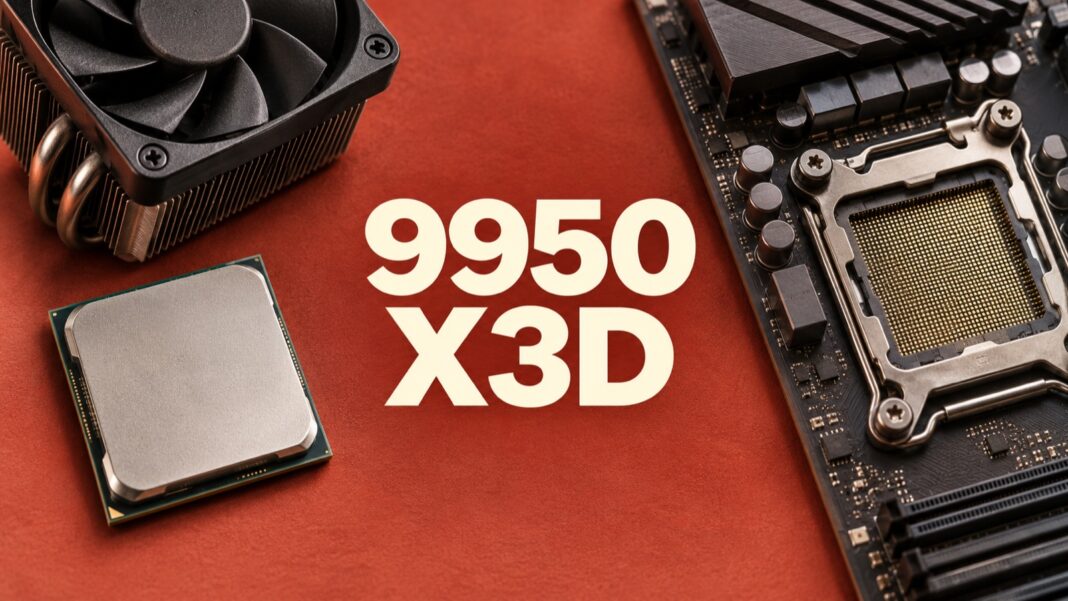

The Ryzen 9 9950X3D can be considered for a computer that handles both gaming and creative work, but a sensible buying decision starts with the workload. A processor that performs well in a game is not automatically the best use of a designer’s budget. Rendering, image editing, application switching and storage transfers can place very different demands on a workstation.
This guide explains what to verify about the exact processor, how to check the surrounding platform and how to compare evidence from your own projects. It uses official specifications and planning examples. It does not claim hands-on benchmark results or rank the processor against every current alternative.
Ryzen 9 9950X3D: identify the exact processor
AMD’s 9950X3D product specification lists 16 CPU cores, 32 threads, the AM5 socket, DDR5 memory support and a 170W default TDP. The model name matters: the 9950X, 9950X3D and similarly named products are separate items. Check the complete name in the retailer’s selected option, basket and invoice.
AMD describes a maximum boost clock of up to 5.7GHz. That is a specification limit, not a guarantee that every core runs at that frequency throughout an export. Do not multiply the clock by the core count and treat the result as a performance score for your application.
Keep a one-page configuration record for the proposed build: processor, motherboard revision, memory kit, cooler, graphics card, power supply and storage. This gives the seller or system builder something concrete to assess. “A Ryzen 9 PC” is too broad to establish either compatibility or suitability.
Separate gaming evidence from creative-work evidence
If you game and work on the same machine, describe both sides of its use. Include the games, target display settings and the creative applications that occupy your week. Then decide which delays or limits matter most. The most impressive result in a review may describe a task you rarely perform.
For creative work, choose examples from your actual projects. A photographer might record a batch export and an interactive editing sequence. A motion designer might record a preview and a final render. A web designer might care more about switching among several applications than a long processor-heavy export.
Use these examples to evaluate independent tests when you read them. Check the application version, project type and test settings. A review using a different GPU, memory configuration and software release may still be informative, but it does not isolate the processor’s contribution to your complete system.
Confirm motherboard support before ordering
The socket is the beginning of a compatibility check. Read the motherboard manufacturer’s CPU-support list for the exact model and hardware revision, including any required BIOS version. If a firmware update is needed, establish how it will be performed before the new processor is installed.
Do not assume that two boards sharing a chipset have identical support, connections or upgrade procedures. A prebuilt computer may also have vendor-specific limitations. Ask its manufacturer about the proposed processor rather than transferring an assumption from a retail motherboard that only looks similar.
For an existing computer, compare the cost and complexity of the processor upgrade with keeping the current configuration. Include the possibility that memory, cooling or other components must change. An apparently simple CPU purchase can become a platform project once the requirements are checked.
Budget for cooling and the full power configuration
AMD states that a thermal solution is not included with the boxed processor and recommends liquid cooling for optimal performance. Plan a supported cooling solution, case clearance and airflow. The processor’s published TDP should not be treated as the electricity use of the entire computer.
Choose cooling against the manufacturer’s compatibility instructions and the case you will actually use. Check mounting support, radiator or heatsink space and access around nearby components. A specification sheet cannot tell you whether your preferred arrangement fits after every other part is installed.
If the build also includes a large graphics card, our RTX 5090 compatibility guide explains the separate case, cable and PSU checks. Treat CPU and GPU planning as parts of one configuration instead of approving them independently and discovering the conflict during assembly.
Match memory and software to the work
Check the motherboard’s supported memory configurations and the application vendor’s requirements. Include capacity as well as the advertised memory speed. A machine running several demanding applications needs to be assessed as a working session, not only as a single open document.
Adobe’s Photoshop requirements, for example, distinguish minimum and recommended configurations. Use the current Windows section for the software you plan to install. Review other applications and plug-ins separately; a supported processor does not prove that an older production workflow is fully compatible.
Record the operating system, application versions and required peripherals before changing the machine. For paid work, preserve installers, licences and a tested recovery path. The point is to complete the same work reliably after the upgrade, not simply to reach the desktop with new hardware.
Measure the delay before replacing the processor
Time a small number of repeatable tasks on the current computer. Note what the application is doing and whether it is waiting for local data, network data or computation. Keep the source files and export settings identical when you repeat the test.
Consider a hypothetical project that takes ten minutes to export but also waits several minutes while media arrives from a slow external drive. A faster CPU might affect one stage while leaving the other unchanged. Without separating those stages, a total completion time can hide where money would be most useful.
Our Samsung 9100 PRO workstation guide discusses the storage side of that decision. A processor upgrade and a storage upgrade solve different bottlenecks. Prioritise the one supported by the work you can reproduce rather than buying a premium part because another component is already premium.
Compare total cost and realistic alternatives
Compare complete builds or complete upgrade paths in the same market. Include the processor, any necessary platform changes, cooling, installation and local support. Check whether an attractive offer is for the exact boxed or system configuration you intended to buy.
Use a simple decision table in your own notes: current delay, proposed change, supporting evidence, total cost and remaining uncertainty. If the main uncertainty is application performance, ask for a relevant test or consult results that closely match the workload. Do not fill that gap with a gaming ranking alone.
Our graphic-design computer guide also helps frame the portability question. A desktop processor can be a reasonable choice for a fixed workstation, while another buyer needs a computer that travels. Choose the platform that fits the workday first, then select the processor with compatibility and workload evidence in hand.